Start with the image’s job on the page
Before writing alt text, decide what role the image plays. A photo of your storefront, a team image, a service icon, and a chart do not need the same treatment. The same image can also need different wording on different pages, because context changes its meaning.
A useful way to think about it is: what would a visitor miss if the image were gone? If the answer is the visual detail itself, write descriptive alt text. If the answer is the action the image triggers, write functional alt text. If the image adds no information, leave it out of the accessibility tree with empty alt text. If the image is complicated, put the details in surrounding copy or a caption.
Write alt text for informative photos
Informative images usually include project photos, product shots, staff photos, and location images that help a visitor understand your business. The alt text should say what matters, not everything visible. You do not need to start with "image of" or stuff in keywords that do not help the reader.
Keep the wording direct and specific to the page. If the photo supports a service page, mention the part of the work that matters there. If it is a team photo, identify the people or roles only if that adds value to the page. If the image is repeated in several places, the alt text may still need to change if the surrounding text changes.
Example alt text for an informative project photo: "Installed steel entry door on a brick storefront." That gives the visitor the main point without trying to describe every detail in the frame.
See example business websites with clear services and contact paths for an example of how this can work on a site.
Handle linked images and icons as actions
When an image is the clickable part of a link or button, alt text should tell the visitor where the click goes or what it does. That matters for call icons, map pins, social icons, logo links, and similar functional images. In these cases, the image is not being read as a picture first; it is being read as a control.
Good functional alt text focuses on the destination or action. For a phone icon that opens a call link, the text should say the action, not describe the icon. For a logo that links to the home page, the text should identify the business and the destination. If the same action is already named right next to the image, keep the wording from becoming repetitive.
Example alt text for a linked call icon: "Call North Ridge Plumbing." Example alt text for a logo link: "North Ridge Plumbing home." These are short because the meaning is in the action.
For the next part of this process, read Write project captions with real details.
Use empty alt text for decorative images
Some images are there to shape the page visually, not to add information. Examples include divider flourishes, background textures, and ornamental graphics. In those cases, empty alt text is usually the better choice because it tells screen readers to skip the image.
This is especially important for small business pages that already have enough content. Decorative images can clutter the experience if they are announced as if they matter. If the image does not add meaning, do not make visitors listen to it. That keeps the page easier to scan and clearer to use.
A common mistake is giving every image a description just because it exists. That can bury the real content under a pile of unhelpful announcements. Decorative images should stay silent so the meaningful ones stand out.
Put this into practice
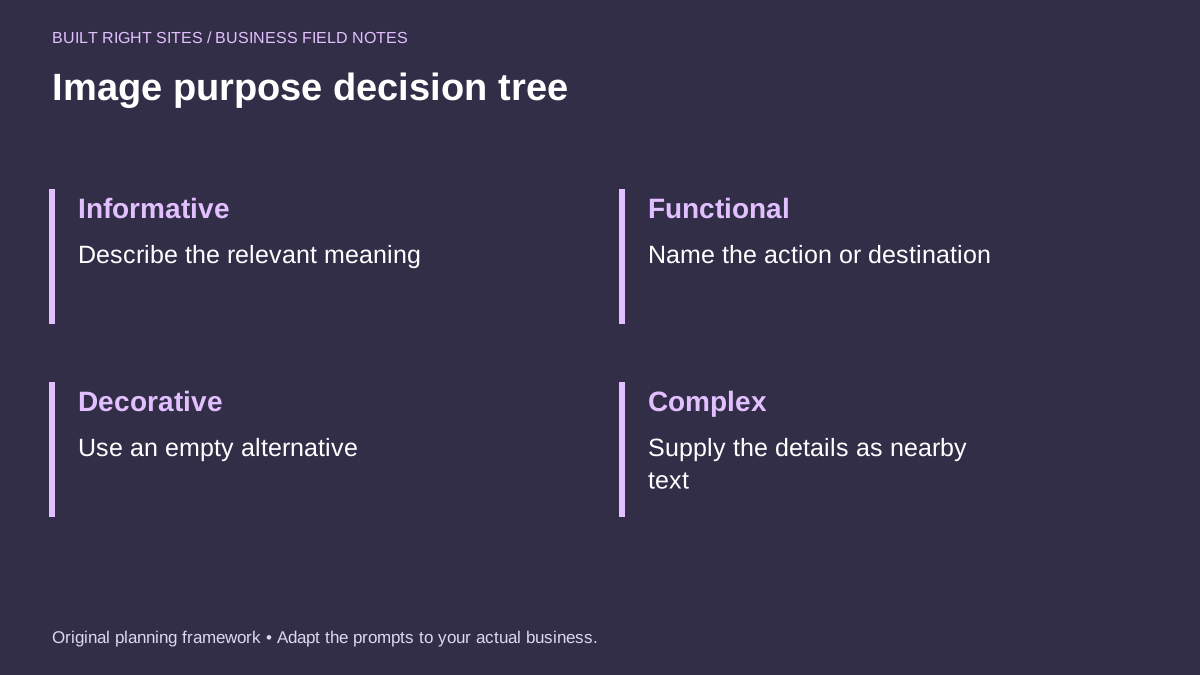
Image purpose decision tree
- Informative: Describe the relevant meaning
- Functional: Name the action or destination
- Decorative: Use an empty alternative
- Complex: Supply the details as nearby text
An original planning framework from Built Right Sites, not a validated benchmark.
Treat complex graphics with nearby text
Charts, diagrams, comparison graphics, and process illustrations often carry more information than alt text can handle well. For these, the alt text should give the short version of the purpose, while the full details should appear nearby in a caption, body copy, or a simple text summary. That way, visitors who cannot see the image still get the information they need.
A good pattern is: short alt text for the image itself, then a plain-text explanation of the important numbers, labels, or relationships beside it. If the graphic is used to explain a process, describe the steps in the surrounding text rather than trying to squeeze them into one long sentence. If the graphic is a comparison, state the comparison in words.
A hypothetical example: a service page uses a diagram showing the order of steps in a kitchen remodel. The alt text could be "Kitchen remodel process diagram." The nearby text could then say: "Step 1: site review. Step 2: layout approval. Step 3: demolition. Step 4: installation. Step 5: final walkthrough." That keeps the image accessible without making the alt text carry too much weight.
For a small-business website, useful alt text is mostly about judgment: what the image means here, what action it supports, or whether it should be skipped. If you start with purpose, keep descriptions tight, and place complex details in nearby text, your pages will be easier to use and easier to understand. That is the practical standard to aim for before you move on to the next page.
Related articles
See how your next website could work
A clear site gives interested customers a useful next step. Explore a homepage for your business, then decide whether it fits.
See my free homepageSources and further reading
- W3C: Image alternative text decision tree — Image alternatives depend on purpose and context.
- W3C: Informative images — Detailed guidance for this image purpose.
- W3C: Decorative images — Detailed guidance for this image purpose.
- W3C: Functional images — Detailed guidance for this image purpose.
- W3C: Complex images — Detailed guidance for this image purpose.
Sources checked October 18, 2026. The worksheets and practical recommendations are our editorial guidance. AI-assisted drafting; reviewed before publication.