Start with the gallery’s job, not the number of photos
Before you change anything, decide what the gallery must do on the page. Is it meant to show finished jobs, help a visitor confirm your style, or support a service page with proof of work? That answer changes which image should appear first and how many images need to be visible without extra scrolling.
If the top of the page is the first thing most visitors see, the leading image should be the one that best supports the page’s main message. Later images can be treated differently. That way, the page can still show your work without making every photo compete for the first load.
The main decision is operational: the page should show the most important image quickly, and defer images that are lower on the page if they are not needed right away. That is a practical way to keep a project gallery from slowing down your website while still keeping the gallery useful.
Match image dimensions to the space each image actually uses
One common reason galleries feel heavy is that the image file is much larger than the space where it is shown. If a photo only appears in a smaller frame, it usually does not need to be delivered at a much larger size than that frame requires. Resizing variants to match display needs is a practical step because it avoids asking a browser to move more image data than necessary for that spot.
This is not just about appearance. Different gallery layouts use different display sizes on desktop and phone, so the same image may need more than one variant. A wide hero-style image may need one version for the top of a page and another for a smaller card or thumbnail area.
The goal is not to create endless versions. It is to make sure each displayed image has a size that fits its real job. If the image is only ever shown small, send a small version. If it must look crisp in a larger view, size it accordingly. That keeps the gallery more practical for both your visitors and your site maintenance.
See example business websites with clear services and contact paths for an example of how this can work on a site.
Choose a format by testing quality and loading on a phone
The best image format is the one that keeps acceptable visual quality while loading well on the device you care about. The aim is to compare usable options. It is to compare format choices and look at the result on a phone, to check the mobile experience directly.
A useful test is simple. Export the same photo in two or more formats, keep the display size the same, and open the page on a phone using the same connection each time. Then compare how the image looks and how the page behaves. You are looking for measured results, not assumptions.
This is especially helpful for project galleries, where image detail matters. A format that looks fine in a desktop preview may still be a poor fit if it makes the page feel heavier on mobile. The right call is based on what you can observe on the actual device, not on what sounds efficient in theory.
For the next part of this process, read Write useful alt text for website images.
Make the first image eager and defer suitable offscreen images
The first image in the gallery deserves different handling from photos that are lower on the page. If the first image is part of the initial screen, it should be loaded promptly so the page does not feel unfinished. Offscreen images that are not immediately visible can be deferred if they are suitable candidates.
That means the loading plan should follow the page order, not treat every image the same way. The browser-level guidance in the source is straightforward: keep initially visible images eager and defer suitable offscreen images. For a small-business site, that usually means the key image at the top gets priority, while lower images wait until they are needed.
This is also where a practical before-and-after plan helps. Before the change, note which image appears first and whether the page waits on later photos. After the change, check whether the top image arrives promptly and whether the rest load as you scroll. The goal is a cleaner first view without removing the gallery’s usefulness.
Put this into practice
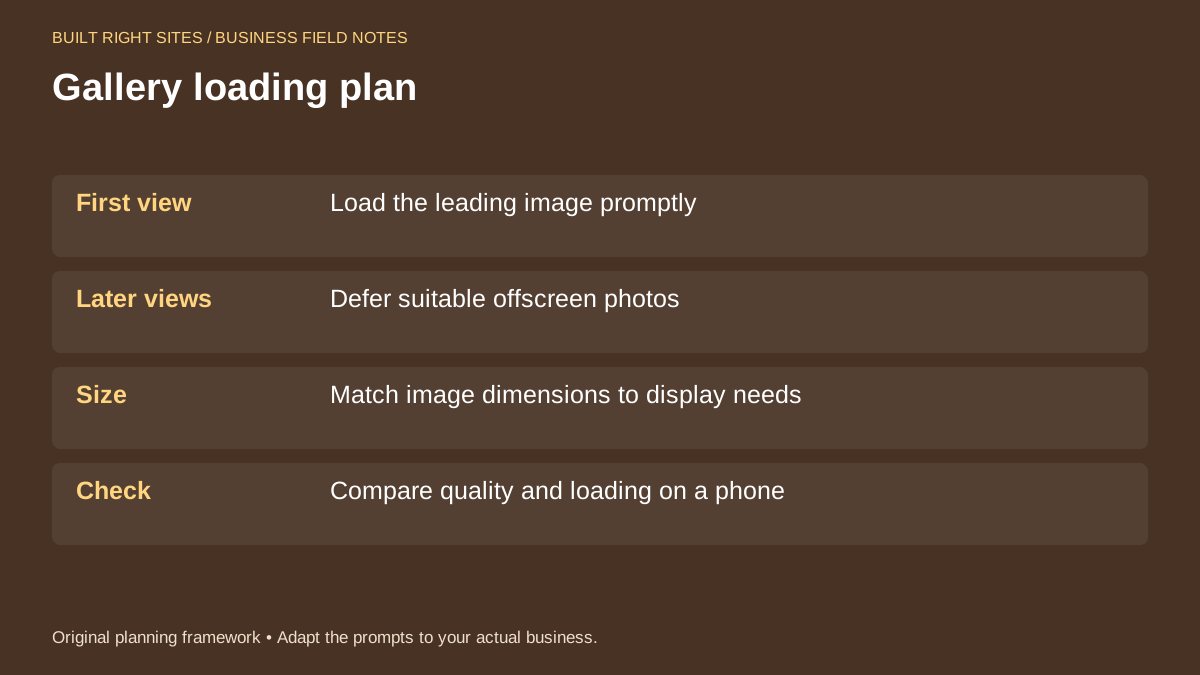
Gallery loading plan
- First view: Load the leading image promptly
- Later views: Defer suitable offscreen photos
- Size: Match image dimensions to display needs
- Check: Compare quality and loading on a phone
An original planning framework from Built Right Sites, not a validated benchmark.
Worked example: a service page gallery for a local contractor
Here is a hypothetical example. A contractor has a service page with four project photos: a finished kitchen, a close-up of tile work, a before photo, and a wide exterior shot. The page’s main job is to show finished work and offer a contact path. The decision is to make the finished kitchen the first image, keep the close-up as the second image, move the before photo lower, and place the wide exterior shot near the bottom.
For this hypothetical page, load the kitchen image eagerly only if it appears in the initial viewport. Defer each later image that starts offscreen. Export appropriately sized variants, then compare the original and revised pages on the same phone, connection, and cache conditions. Record actual image transfer sizes and loading timings alongside a visual quality check. Keep a change only if the recorded comparison supports it without losing needed detail.
A sample test plan could read: “Leading image: finished kitchen. Supporting images: tile detail, before view, exterior context. Export candidates: smaller and larger variants for each display size. Test: repeat the same page visit on one chosen phone and connection, recording the conditions.” These are proposed steps, not a report of a completed performance test. Choose dimensions from the real layout and screen density rather than treating example widths as universal settings.
If you want a gallery that supports your business without dragging down the page, make the loading plan as deliberate as the design. Start with the first image, defer the images that do not need to appear immediately, size each file for its actual display space, and compare results on the same phone and connection. That process gives you a practical way to improve the page without guessing, and it keeps the gallery focused on helping visitors understand your work.
Related articles
See how your next website could work
A clear site gives interested customers a useful next step. Explore a homepage for your business, then decide whether it fits.
See my free homepageSources and further reading
- web.dev: Browser-level image lazy loading — Keep initially visible images eager; defer suitable offscreen images.
Sources checked October 18, 2026. The worksheets and practical recommendations are our editorial guidance. AI-assisted drafting; reviewed before publication.