Start with the four mobile tasks that matter
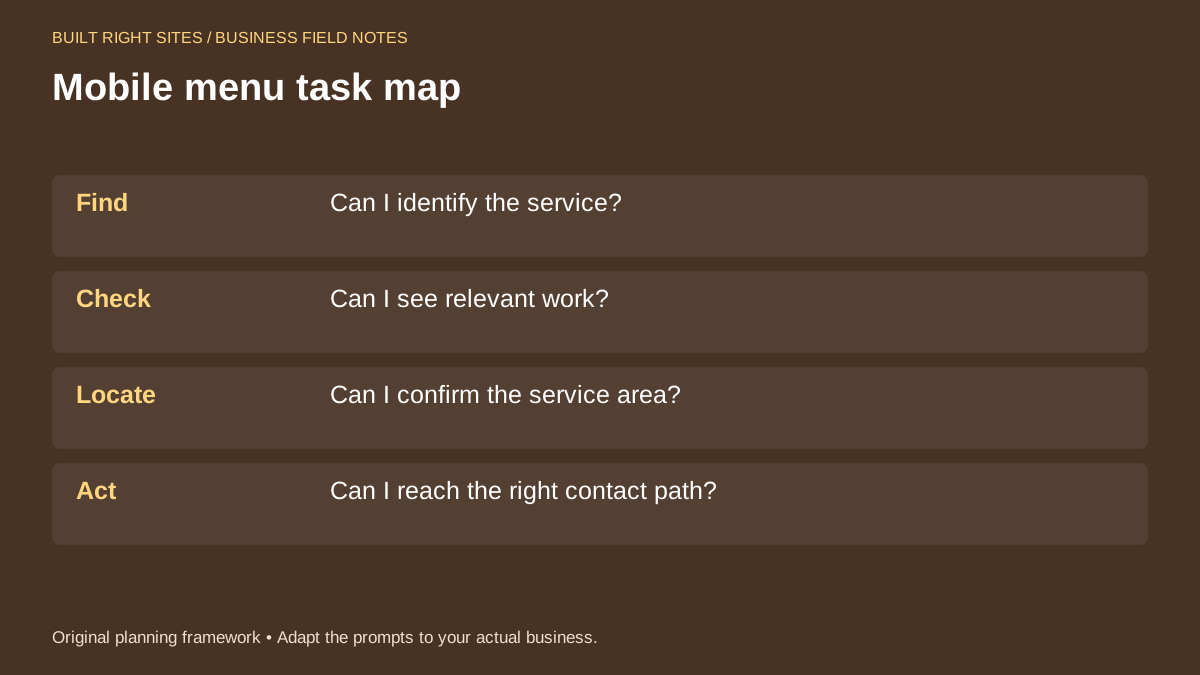
The best place to start is not with page names but with the four things a phone visitor is trying to do: find the service, see relevant work, confirm the service area, and reach the right contact path. That simple task map keeps the menu focused on action instead of internal labels.
On a small screen, every extra choice adds friction. If a visitor has to scan past company history, blog links, or grouped services before they can see the main service, the menu is doing too much work. The goal is not to show everything; it is to help people move quickly to the next step.
Build the menu around service, work, area, and contact
A practical menu for a service business often starts with one clear service page, one page for recent work or project examples, one page for service area, and one contact path. That structure is easy to scan on a phone and gives people the facts they usually need before reaching out.
The point is not to force every business into the same label set. It is to make each label answer a question. Service should tell people what you do. Work should show what that looks like. Area should confirm where you serve. Contact should make the next step obvious.
W3C notes that structured menus help users understand navigation. That is useful here because a tidy structure gives mobile visitors fewer guesses to make and fewer taps to waste on the wrong page.
See example business websites with clear services and contact paths for an example of how this can work on a site.
A worked example: a handyman site before and after
Here is a simple fictional example. Before: Home, About, Services, Gallery, Blog, Service Areas, Contact. That menu gives a visitor several places to start, but it does not tell them which one answers their immediate question.
After: Services, Work, Service Area, Contact. Under Services, the page says: Handyman repairs, fixture replacement, small installs. Under Work, the page shows a few recent before-and-after photos with short captions. Under Service Area, the page lists the towns served in plain language. Under Contact, the page offers a phone number and a short form.
In this example, the menu changed from a general website structure to a task structure. A homeowner who needs a faucet fixed can identify the service, review work examples, confirm the area, and contact the business without sorting through extra pages first.
For the next part of this process, read Answer the questions your customers ask.
Check the menu on a phone and with a keyboard
A menu can look fine in a desktop mockup and still feel awkward on a phone. Open the site on a real mobile screen and ask whether the main labels are still visible, whether the menu is easy to open and close, and whether the most important pages are reachable without hunting. If a label needs explanation, it may be too broad.
Then test the same menu with a keyboard. Use the Tab key to move through the links and make sure the focus order follows the expected path. This is a practical way to catch navigation that only works well when someone can point and tap. It is not about making technical claims; it is about noticing whether the menu behaves in a way that lets people move through it cleanly.
If your menu includes dropdowns, keep them short and predictable. Long nested lists can be hard to scan on a small screen, especially when a visitor is trying to confirm one service quickly. In many cases, fewer top-level choices are easier to use than several layers of options.
Put this into practice
Mobile menu task map
- Find: Can I identify the service?
- Check: Can I see relevant work?
- Locate: Can I confirm the service area?
- Act: Can I reach the right contact path?
An original planning framework from Built Right Sites, not a validated benchmark.
What to change after the first review
After the first review, look for places where the menu repeats the same idea in different words. If Services, Repairs, and Maintenance all point to similar content, combine them or make one the main entry. If the same contact path appears in several places, decide which one should be primary and keep the rest secondary.
Also watch for pages that should not be in the main menu. Blog archives, policy pages, and long company background sections can still exist, but they do not need to compete with the pages a service customer is most likely to use first. Moving them lower in the site can make the top navigation easier to scan.
The practical aim is simple: when a mobile visitor lands on the site, the menu should help them decide whether you are the right fit and how to take the next step. If it does that with fewer choices and clearer labels, it is doing its job.
A simpler mobile menu is less about design trends and more about helping a visitor complete four basic tasks without confusion. If the menu makes the service, work, area, and contact path easy to find, it gives your site a cleaner first impression and a more usable route to action. Start with the task map, trim the labels, test on a phone and with a keyboard, and keep the structure centered on what a customer needs next.
Related articles
See how your next website could work
A clear site gives interested customers a useful next step. Explore a homepage for your business, then decide whether it fits.
See my free homepageSources and further reading
- W3C: Menu structure — Structured menus help users understand navigation.
Sources checked October 18, 2026. The worksheets and practical recommendations are our editorial guidance. AI-assisted drafting; reviewed before publication.